Setting up your Mac to create a Playdate app
This guide is written on macOS Monterey (v12.3).
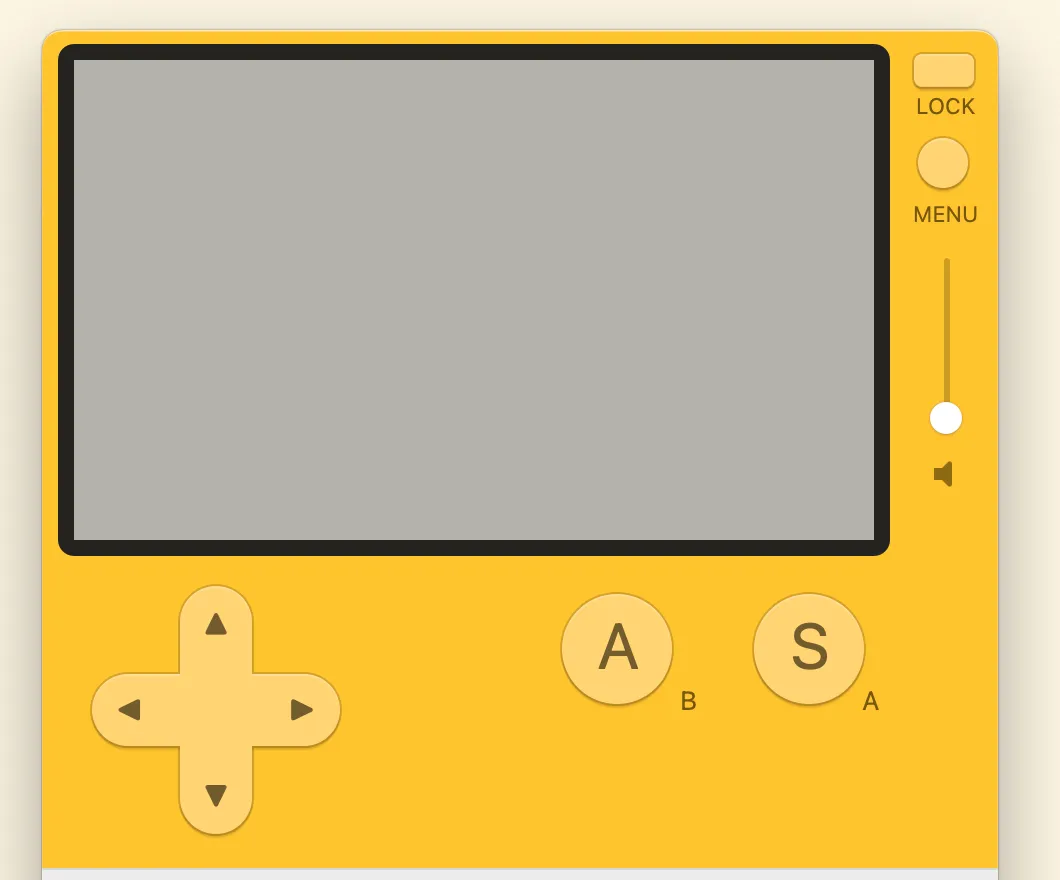
Here are instructions on setting up & running the most barebones app possible on macOS. There are probably better ways to do this, but here’s one way that works for me.
-
Download & install the SDK via https://play.date/dev/
-
Update your
**~/.zshrc**file with the following line:export PLAYDATE_SDK_PATH=/Users/rex/Developer/PlaydateSDKObviously you want to replace “rex” with your username.
-
Create a new folder for your project (anywhere)
**mkdir playdate_hello_world
cd playdate_hello_world
** -
Create a VS Code folder & settings file
**mkdir .vscode touch .vscode/settings.json
** -
Put the following into your new settings.json file. Make sure to replace the 2 instances of “rex” with your username
**{ "Lua.runtime.version": "Lua 5.4", "Lua.diagnostics.disable": [ "undefined-global", "lowercase-global" ], "Lua.diagnostics.globals": [ "playdate", "import" ], "Lua.runtime.nonstandardSymbol": [ "+=", "-=", "*=", "/=" ], "Lua.workspace.library": [ "/Users/rex/Developer/PlaydateSDK/CoreLibs" ], "Lua.workspace.preloadFileSize": 1000, "playdate.sdkPath": "/Users/rex/Developer/PlaydateSDK" }**(Apologies for the formatting. Wordpress & code doesn’t mix well). You can copy & paste above (and make sure to replace the 2 “rex”s)
-
Create a simple file for your app
**mkdir source touch source/main.lua **
Copy the following into main.lua:**
import "CoreLibs/object" import "CoreLibs/graphics" import "CoreLibs/sprites" import "CoreLibs/timer" function playdate.update() print "Hello world" end
**
Obviously this code does not do very much. It’s super, super basic, but it compiles & runs! -
Install the following VS Code extensions (sumneko.lua, jep-a.lua-plus, and Orta.playdate)
-
Run your app on the Playdate Simulator with VS Code.
Press Cmd + Shift + P and select & run [Run app in Playdate simulator]
-
That’s it! Your app is now running on the Playdate sim. You can view print statements by using Window > Console.
For more comprehensive details, refer to the SDK documentation: https://sdk.play.date/1.10.0/
For the sample files discussed here, see repo: https://github.com/xta/playdate_hello_world